Build and Deploy Locally
For local development, we recommend using Tilt and KinD . Tilt is a tool that watches the local repository for changes, and when changes are detected, executes builds and updates Kubernetes resources. KinD (Kubernetes-in-Docker) allows the creation of multi-node Kubernetes clusters on a local machine by using Docker containers as nodes.
The repository contains Tiltfiles for a EuroDaT Trustee-platform cluster.
Our provided Makefile simplifies the
setup and maintenance.
Our architecture allows for rapid iteration of builds, image pushes and re-deployment of resources as we use jib in combination with local Docker registries. Image builds and pushes should be a matter of seconds (depending on your local machine).
A caveat of this setup is that builds often trigger base image pulls from Docker Hub. You may run into rate caps if you frequently re-build images. (At the time of writing, Docker Hub limited daily image pulls to 100 per day for anonymous users.)
System requirements
For optimal performance during local building and deployment, it is highly recommended to use a system with a minimum of 32GB RAM.
Local repository setup
Clone the Git repository:
Environment setup
Official support to run the EuroDaT platform is provided for Ubuntu.
You should have the following tools installed via your favourite package manager or corresponding installation instruction by the provider:
- jq (e.g. via apt)
- make (e.g. via apt)
- docker (e.g. via apt)
- kubectl
- helm
- Java 17 (e.g. via apt)
- Maven
- Gradle
- Python 3.x (e.g. via apt)
If you’re running Linux in a virtual machine, it may be necessary to restart the virtual machine for changes to take effect ( see Docker for Linux )
On Ubuntu Linux
All necessary setup can be achieved using the Makefile from the repository.
- Install Tilt and the necessary dependencies (KinD, kubectx and ctlptl) and setup local Maven repository with:
Optional: Create access token and log in to Docker
It is possible that you'll run into pull-rate limits if you're restarting Tilt
resources frequently within a short amount
of time. You can increase this limit by creating an access token for the Docker
Hub.
For this, open Docker Desktop (if installed) and click on your user and
Account Settings. This will guide you to the Docker Hub page
with your profile. Go to Security and click on new access token. Then copy
the generated password and open
a shell. Run the command but replace your own Docker name and enter your
copied password.
Additional, useful tools
Use k9s
- We recommend k9s for Kubernetes
debugging. Among its numerous features, note:
- painless access to logs, descriptions, and manifests.
- rapid switching between Kubernetes contexts,
- decryption of secrets,
- easily executing a shell in containers,
- easily managing port forwards.
Install the pre-commit hook
We use three pre-commit hooks to check our code:
- ktlint : kotlin files
- markdownlint-cli2 : markdown files
- Talisman : scans for possibly sensitive data
The script cluster/scripts/install-pre-commit-hook.sh installs Talisman and
ktlint only for the repository the file
was executed from and creates the .git/hooks/pre-commit file.
markdownlint-cli2 needs to be installed manually
(it requires node.js ).
Make sure to run the script from inside the repository you want the hooks to be
installed in. If you run Git from a
different OS than you ran the installation script from, please rerun the script
in that OS. On Windows, you need to run this script using Git
Bash.
You must do commits through a command line to see Talisman warnings. However, Talisman errors are shown even by other tools, e.g., IntelliJ interface.
You must correct confidential information caught by Talisman right after it was shown to you by Talisman. It is needed because Talisman checks only git diff, and it will not catch your secrets or passwords again later if you will not do any changes in them. If you push then, that sensitive information will be caught by the Talisman job in a pipeline, but all the history with this information will leak.
For more information refer to this instruction.
Configure the Identity Provider
- Set a value for the following keys in the
tilt_config.json:- KEYCLOAK_REALM
- FRONTEND_SECRET
- TX_SCHEDULER_SECRET
- REALM_ADMIN_SECRET
Your local cluster will communicate with the external Identity Provider, use your provided realm, and try to authenticate with your provided credentials.
Tilt environment setup
The cluster in the local setup are defined in ./Tiltfile. Most components are
rolled out
by installing the Helm Charts defined in our repository, with values
customised for the local settings, thereby acquired
as much dev-prod parity as possible.
The startup and teardown of a local setup is automated with a Makefile. To see
all the make targets, you may invoke
make or make help.
Create KinD clusters and local Docker registries
On Windows, you need to run this script using Git Bash:
Platform cluster
Start EuroDaT Tilt session (platform cluster). On Windows, you need to run this script using Git Bash:
Start while updating the Helm Charts. On Windows, you need to run this script using Git Bash:
It is possible to exclude (xcl) services or pre-specified groups of services from the Tilt session to speed-up builds and decrease resource consumption. On Windows, you need to run this script using Git Bash:
The groups of service currently available to disable in the platform cluster are:
| Group | Services |
|---|---|
| argo-workflows | argo-workflows-controller, argo-workflows-server, argo-workflows-config |
| transaction-service | eurodat-transaction-service, transaction-service-config, transaction-service-argo |
| config | cert-manager, eurodat-cluster-reflector, eurodat-cluster-reloader, restart-reflector, cluster-config, cert-management, restart-reflector-config, eurodat-certificates, eurodat-network-policies, trust-manager |
| data-plane | eurodat-data-plane |
| postgres | eurodat-postgresql-database, postgresql-config, postbootstrap-config, postbootstrap-config-job |
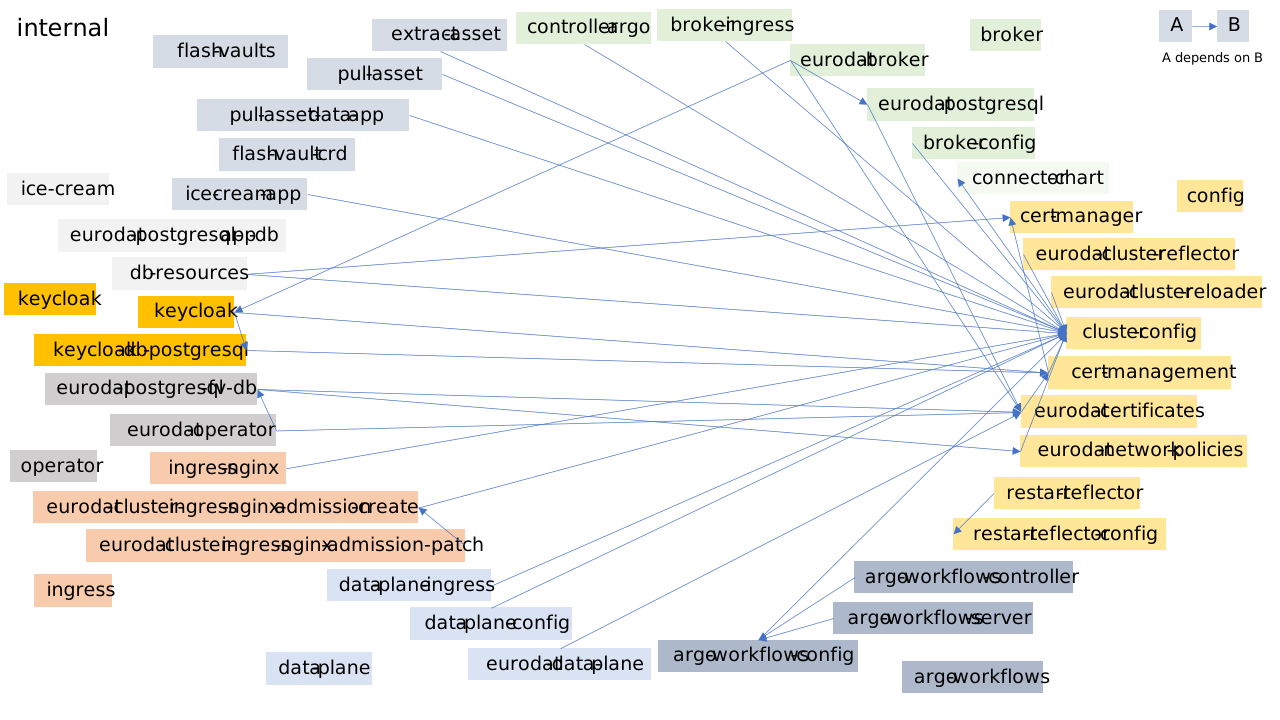
Note that a service can not be disabled, if an enabled service depends on it. In this case, Tilt overrules the exclusion. For an overview of all internal services and their dependencies refer to the following image (click to enlarge):
In case Tilt does not display the option to start the web GUI, open
localhost:10350 in your browser.
- To update all the Helm dependencies, use
make update. - To delete the local clusters, execute
make teardown. Note: This should not be necessary between Tilt sessions. - The (platform) cluster can be setup and torn down with
make setup/make teardown. The teardown commands will only remove the KinD cluster but not the registry. make update-transaction-serviceupdates thetransaction-serviceHelm Chart and the charts that depend on it. The command is automatically executed by the internal Tiltfile if any file in thetransaction-serviceHelm Chart changes.
Running the trustee locally
Swagger UI
Once all necessary components are up and running you can use Swagger-UI (
available at
https://<machine name>.local/control-plane/api/v1/swagger-ui/) to test/try out
the system.
Common Issues
When running Tilt, some resources fail.
This can occur due to race conditions or misconfigured dependencies between resources. Please restart all failed resources starting from ingresses (you can do several attempts). Check for potential errors using Tilt logs and review failing Kubernetes resources (e.g., using k9s or kubectl).
When running Tilt, some pods are stuck in Pending state.
Check the events for scheduling errors. If you see insufficient cpu or
insufficient memory, you'll need to increase
the resources that are available to the worker node of the kind cluster. On
Windows with WSL2, you'll need to increase the
resource limits of WSL
in the .wslconfig file and restart WSL for the changes to take effect.
The warning "too many open files failed to create fsnotify watcher..." appears in logs.
Change sysctl limits for Linux systems:
sysctl -n -w fs.inotify.max_user_watches=10485677 && sysctl -n -w fs.inotify.max_user_instances=512 && sysctl fs.inotify
You need to adapt this command for Windows with WSL2: